
Quick start
Five steps from a folder of clips to a finished MP4. It takes a few minutes the first time.
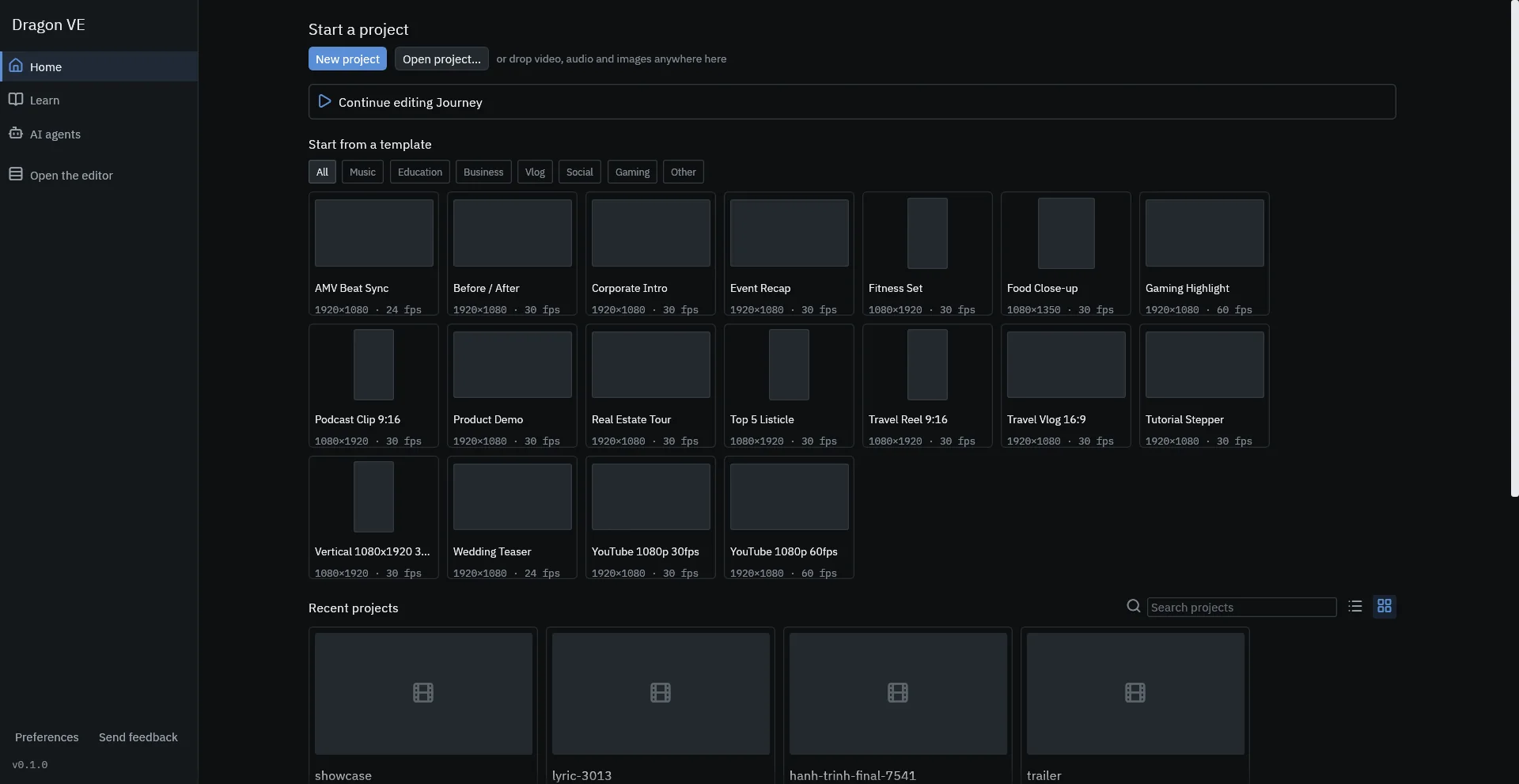
- Create a project. On Home, press New project — or choose a template such as Travel Vlog 16:9 or TikTok/Reels 9:16 to start with the right frame size and frame rate. You can also drop video, audio and images anywhere on Home.
- Import your footage. Use File → Import media… or drag files into the Library. Dragon VE reads each file, builds waveforms and, for heavy footage, small proxy files so playback stays smooth.
- Build the cut. Drag clips from the Library onto the timeline. Press Space to play, C (or Ctrl+K) to split at the playhead, and drag a clip's edge to trim it.
- Add a title. Open the Text tab of the Library and drag a title onto the track above your footage. Type your words in the inspector's Text tab.
- Export. Press Export at the top right, choose where to save the MP4 and watch the progress window. Change the preset first under File → Export Preset if you are making a vertical video.
Ctrl+Z undoes any change — your own and your AI agent's. Dragon VE also autosaves and offers to recover unsaved work after a crash.
Where to next
- The interface — what each panel does.
- Editing on the timeline — tools, trims and transitions.
- Work with an AI agent — let Claude Code do the first pass.