
Export
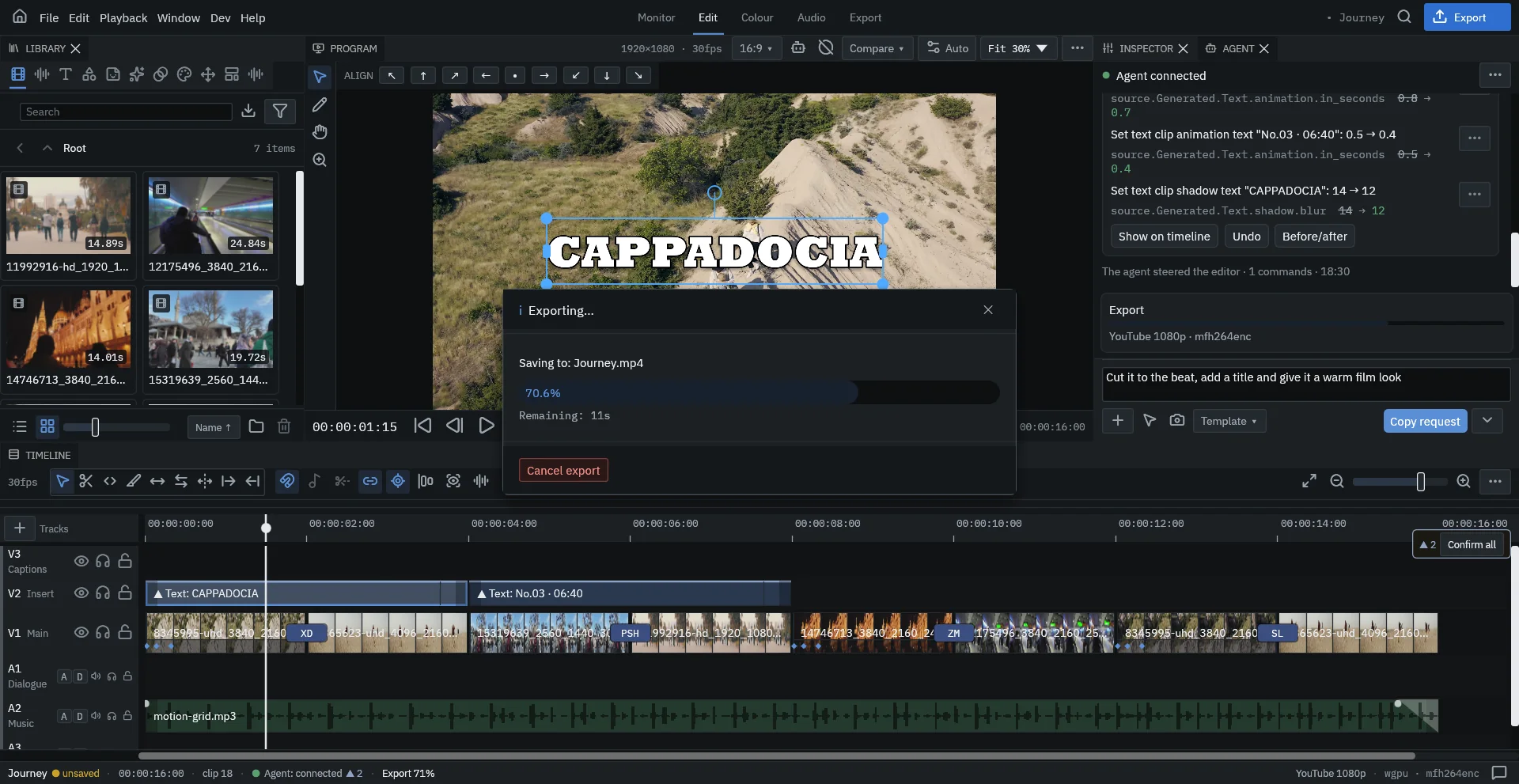
Press Export at the top right, choose where to save the MP4, and Dragon VE renders the timeline exactly as the viewer shows it.
Presets
Pick one under File → Export Preset. A preset of another shape than your project changes the project's frame — choosing a vertical preset on a landscape project makes the project vertical and reflows titles to fit.
| Preset | Size | Use it for |
|---|---|---|
| YouTube 1080p | 1920×1080 | YouTube, Vimeo, most landscape delivery |
| YouTube 2K / 4K / 8K | 2560×1440 · 3840×2160 · 7680×4320 | High-resolution uploads and masters |
| TikTok/Reels | 1080×1920 | TikTok and Instagram Reels |
| Shorts | 1080×1920 | YouTube Shorts |
| Vertical 2K / 4K / 8K | 1440×2560 · 2160×3840 · 4320×7680 | High-resolution vertical video |
Export settings
File → Export settings… sets the codec, the encoder and the delivery size.
- Codec: H.264 (the most compatible and the fastest), H.265/HEVC or AV1 (smaller files, slower to render).
- Encoder: Auto uses your GPU's hardware encoder when there is one and falls back to software; Software always encodes on the CPU.
- Loudness: set the target in the Inspector's Project tab so the export meets the platform's level.
How Dragon VE renders
Simple projects export through a fast GPU pipeline from decode to encode. Projects that use features that pipeline cannot do — some effects, transitions, blend modes, speed changes or another codec than H.264 — render frame by frame instead. Both give the same picture; the second is slower. You don't have to choose: Dragon VE picks the route for you.
Other exports
- File → Export still frame… saves the current frame as an image.
- Captions can be exported as an SRT file.